Google Workspace Automation Explained in Plain English
Google Workspace automation explained in plain English: what it does, where it saves hours, and how to judge whether it is worth paying to build.
Your team runs the business inside Gmail, Drive, Sheets and Calendar, but too many hours still disappear into copying data between apps and repeating the same manual steps. Google Workspace automation is software that does those repetitive steps for you, so your people spend their time on judgment and customers instead. This guide explains what it actually does, where it pays off, and how to decide if it is worth building.
What People Mean by Google Workspace Automation
In plain terms, Google Workspace automation is software that performs the repetitive steps you now do by hand inside Gmail, Drive, Sheets, Docs, Calendar and Forms. Google Workspace is the paid suite of these business apps (Wikipedia: Google Workspace). Automation sits on top of that suite and handles the boring middle: the copying, the filing, the chasing.
There is a difference between a one-off task and a repeatable workflow. Cleaning up a messy sheet once is a one-off; you just do it. Taking every form response and filing it into the same sheet, every day, by the same rules is a repeatable workflow. Repeatable workflows are what automation is built for, because the payback comes from doing the same thing hundreds of times without you.
It helps to be clear about what this is not. Automation does not replace your judgment or your team. It does not decide which deals to chase or how to word a tricky client reply. What it removes is the copy-paste, the manual filing, and the hunting for information that should already be where you need it.
Automation vs the built-in features Google already gives you
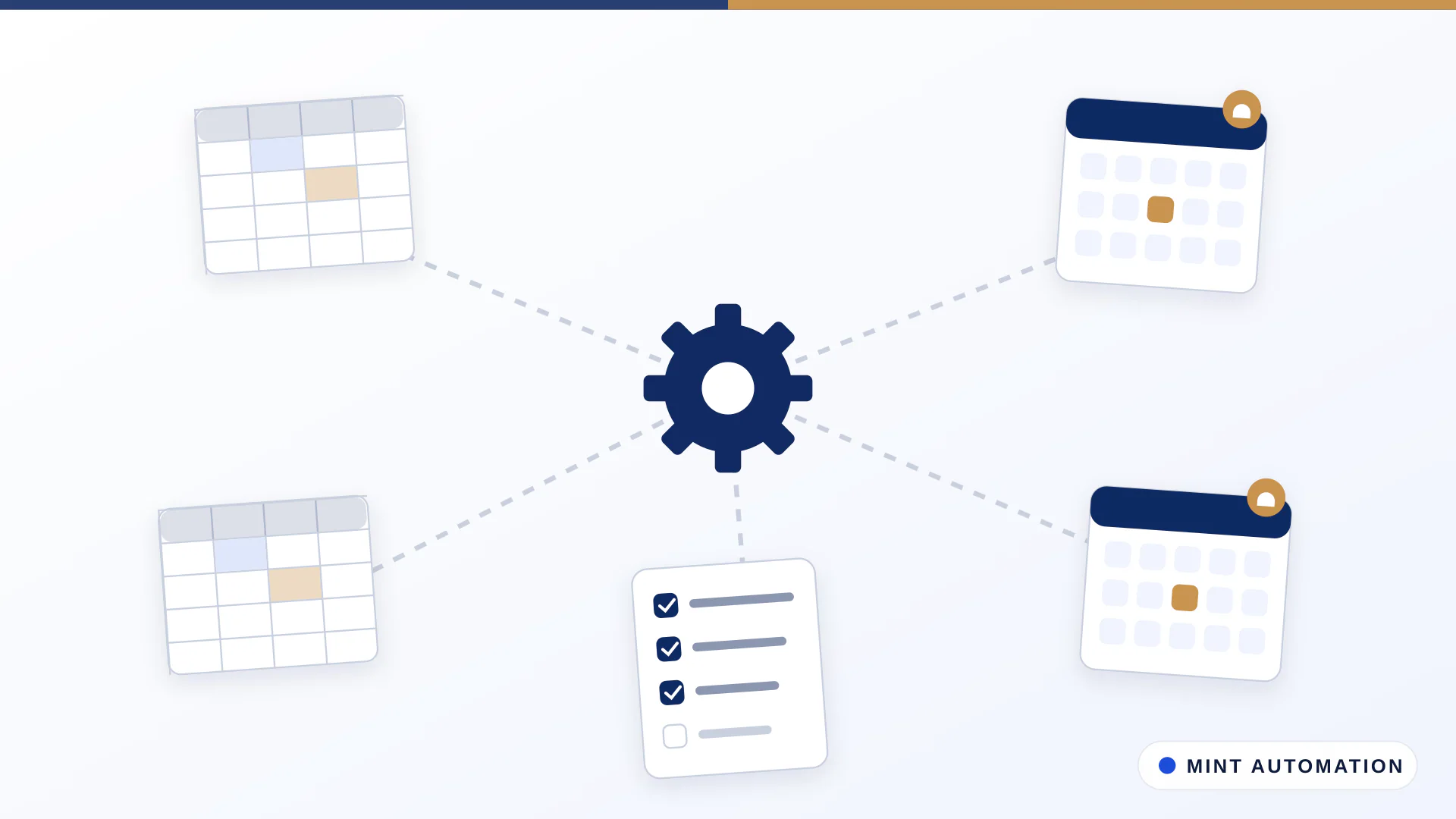
Gmail filters, Sheets formulas and Drive folders cover simple, single-app jobs. A filter can label an email; a formula can total a column. Custom automation steps in when a job crosses several apps, follows rules that are too specific for a filter, or needs to touch outside tools. For example, Google’s built-in rules cannot read an attachment, pull three fields out of it, log them in a sheet, and file the document under the client’s name. That chain across apps is where custom work earns its place. For a broader view of which jobs fit this pattern, see what can be automated in your business.
How It Works, Step by Step
Almost every automation follows the same shape, no matter how complex it looks from outside.
- A trigger starts the work. That might be a new email arriving, a form being submitted, a new row added to a sheet, or simply a set time of day.
- The automation reads the information it was handed and decides what to do, following rules agreed with you in advance.
- It moves or updates the information where it belongs, across one or more apps.
- A result lands somewhere useful: a filed document, an updated sheet, a sent reply, or a calendar invite.
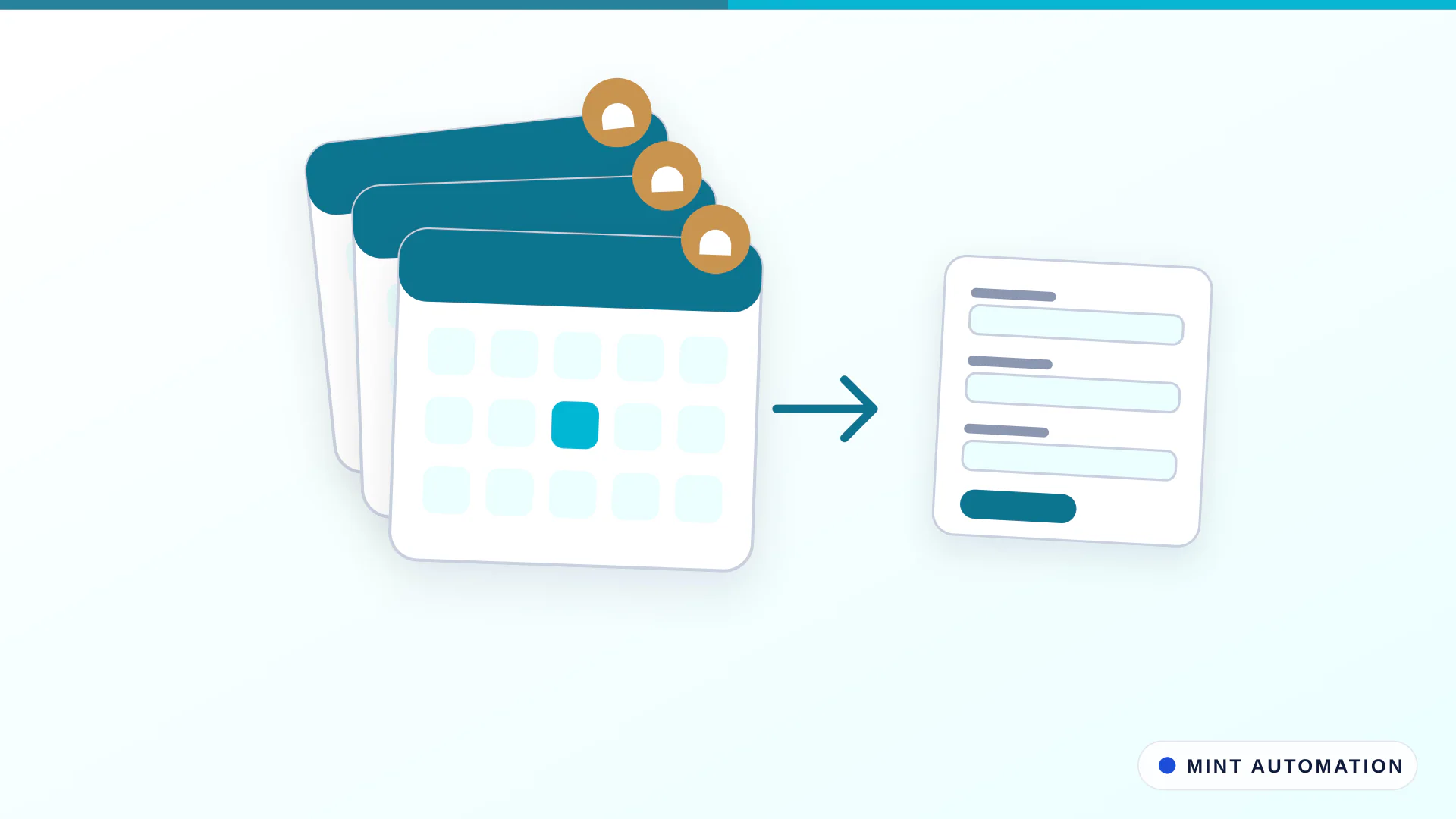
Here is one example from start to finish, with no technical detail. A customer submits a Google Form to request a quote. The moment they hit submit, the automation picks up their answers, writes them as a clean row in your Sheets tracker, creates a folder in Drive named after the customer, drops any uploaded files into it, and sends you a short Gmail notice that a new request is waiting. What used to be five minutes of copying and filing now happens before you have finished your coffee, and nothing is forgotten.
Common Jobs It Takes Off Your Plate
Most Workspace automation falls into a handful of recurring jobs. You will likely recognise several from your own week.
- Sorting and routing inbound email, then logging each one where the whole team can see it, so nothing sits unread in one person’s inbox. If email triage is your main pain, Inbox Triage AI is built for exactly this.
- Pulling data out of form responses and attachments into a clean, consistent sheet, instead of retyping it.
- Filing and naming documents in Drive by a set rule, so files are findable months later rather than lost in a download folder. Our Auto File Organizer handles this specific job.
- Creating and sending documents built from a spreadsheet, such as quotes or letters, one per row, without manual editing. There is a full plan for this in bulk document generation from spreadsheets.
- Keeping Workspace data in sync with your other tools, so a figure entered once appears everywhere it is needed.
Where Workspace automation connects to tools like QuickBooks, Xero, Shopify or your CRM
Workspace rarely lives alone. A sale in Shopify, an invoice in QuickBooks or Xero, and a contact in your CRM all hold data your sheets and inboxes also need. Automation connects these through their integrations so the same number does not get typed four times. Where a clean connection exists, this runs through API and app integrations, which is the most reliable way to move data between systems. If you are weighing that against other methods, browser automation vs API integration lays out the trade-offs, and Google Sheets to CRM sync covers that specific case.
When It Is Worth It and When It Is Not
The honest answer is that not everything should be automated. Good candidates are tasks you do often, by set rules, with predictable data. Form-to-sheet logging, document filing and recurring reports all qualify.
Poor candidates are rare tasks, one-time cleanups, or work that needs human judgment every single time. If a job changes shape with each instance, or hinges on a conversation, automation will fight you more than it helps.
A simple way to size the payback: multiply how long the task takes by how often you do it, then weigh that against your own hourly cost. A two-minute task done twice a month is not worth building. The same two minutes done forty times a day is a different story.
The biggest mistake is trying to automate everything at once. Start with one painful, frequent task. Prove it saves time. Then expand. That approach keeps risk low and makes the value obvious before you spend more.
A quick self-check before you spend money
- Do I do this task at least a few times a week?
- Do the steps follow the same rules nearly every time?
- Is the incoming data fairly consistent and predictable?
- Would removing it free up time for work that actually needs a person?
If you answered yes to most of these, it is a strong candidate. If you are unsure, a free automation assessment will tell you plainly, and how to calculate the ROI of automating a process walks through the maths in detail.
What It Costs and How to Judge Payback
Three things drive the cost of building an automation: how many steps it involves, how messy the incoming data is, and how many separate tools it has to touch. A tidy two-step job inside Sheets is cheap. A multi-step chain that reads scruffy attachments and updates three systems costs more, because more can go wrong and more has to be handled.
It also helps to separate build cost from running cost. Build cost is the one-time work to design, build and test the automation. Running cost is anything it uses month to month, plus support to keep it healthy as your tools change. Both matter; a low build price with heavy ongoing costs may not be the bargain it looks like.
To estimate payback, work out how many hours the automation removes each week, then turn that into money using your hourly cost. Compare the yearly saving against the build and running cost to get a payback window.
As an illustrative example only: suppose a task takes 5 hours a week and automation removes 4 of them. At an assumed cost of £20 per hour, that is £80 a week, or roughly £4,000 over a year. If the build cost sat around £1,500, it would pay for itself in under five months. These figures are made up to show the method, not a quote. For a deeper breakdown, see what AI automation costs for a small business and data entry automation cost.
Risks and Limits to Watch For
Automation touches your data, so access matters. A well-built workflow should see only what it needs and no more, and the people who can view or change its data should be a short, deliberate list. Ask who holds the keys and how that is kept tight as staff come and go. MINT’s privacy policy sets out how we treat client data.
Things will occasionally go wrong: a form field changes, a file arrives in an odd format, a connected tool is briefly down. The question is not whether that happens but what the automation does when it does. It should flag the problem clearly to a named person rather than guessing.
The quiet danger is a silent failure, where work stops but nobody notices for a week. Good automation reports that it ran and raises a visible alert when it did not, so a stall is caught the same day.
Finally, keep a human check on anything money-related or customer-facing. Automation can prepare an invoice or draft a reply; a person should approve the ones that carry real consequences. That balance keeps speed without handing over judgment.
How to Evaluate a Provider Before You Commit
Before you pay anyone, press on the things that matter once the novelty wears off. The checklist below helps you compare quotes on the same terms.
| What to ask | Why it matters |
|---|---|
| How are errors detected and who gets told? | Decides whether a failure is caught in hours or weeks |
| What support is included after launch? | Tools change; something will eventually need a fix |
| Who owns the automation and the data if we part ways? | Protects you from being locked in |
| Can we start with one workflow as a paid pilot? | Lets you judge quality before committing further |
| Is the quote a fixed price or open-ended? | Keeps cost predictable |
Ask directly who owns the automation and your data if the relationship ends; the answer should be you. Start with a small paid pilot on one workflow before expanding, so you buy on proof rather than promises. You can see how we structure delivery on how MINT delivers automation, and AI agents for business operations: a buyer’s checklist offers more questions worth asking.
Sources and further reading
How Mannveer International (MINT) Can Help
If your business lives in Gmail, Drive, Sheets, Calendar and Forms and still loses hours to copy-paste, MINT builds custom automations across those apps, tailored to how you actually work. We connect Workspace to the tools you already use, such as your CRM, accounting software or online store, so a figure entered once stops being retyped everywhere else. You can explore the range on our custom automation services and automation solutions pages.
We start with one high-pain workflow, prove the time it saves, then expand from there. You get a plain-English estimate of effort, cost and payback for your situation, a fixed quote with no open-ended surprises, typically 3–7 business days to deliver a standard automation, and ongoing support to keep it running as your tools change.
- Contact MINT to describe the task eating your week
- Connect with MINT to talk through options with our team
- Read MINT case studies to see the kinds of workflows we build
- Book a free automation assessment for a no-pressure review of where automation would pay off
FAQ
Is Google Workspace automation different from the filters and rules Gmail already has?
Yes. Gmail filters handle simple, single-app jobs like labelling an email. Automation steps in when a job crosses several apps, follows more specific rules, or touches outside tools, such as reading an attachment, logging it in Sheets, and filing the document in Drive.
Do I need a technical person on staff to run these automations?
No. A well-built automation runs on its own in the background. You should receive clear alerts if something needs attention, and your provider handles fixes. Your job is to act on the results, not to maintain the automation yourself.
How long does it take to set up an automation for one workflow?
For a standard automation, MINT typically delivers within 3 to 7 business days after scoping. More complex workflows that touch several tools or messy data take longer. We give you a clear timeline with the fixed quote before any work begins.
What happens if Google changes something or an automation breaks?
Tools do change, and something will eventually need adjusting. Good automation flags a problem to a named person rather than failing silently. With ongoing support, the fix is handled for you, usually quickly, so the workflow keeps running.
Can Google Workspace automation connect to my CRM and accounting software?
Usually, yes. Where tools like your CRM, QuickBooks, Xero or Shopify allow a clean connection, automation keeps data in sync so figures are not retyped. The best method depends on each tool, which we confirm during scoping.
Want your apps to stay in sync on their own?
MINT connects your CRM, accounting, and spreadsheets so data moves without copy-paste.