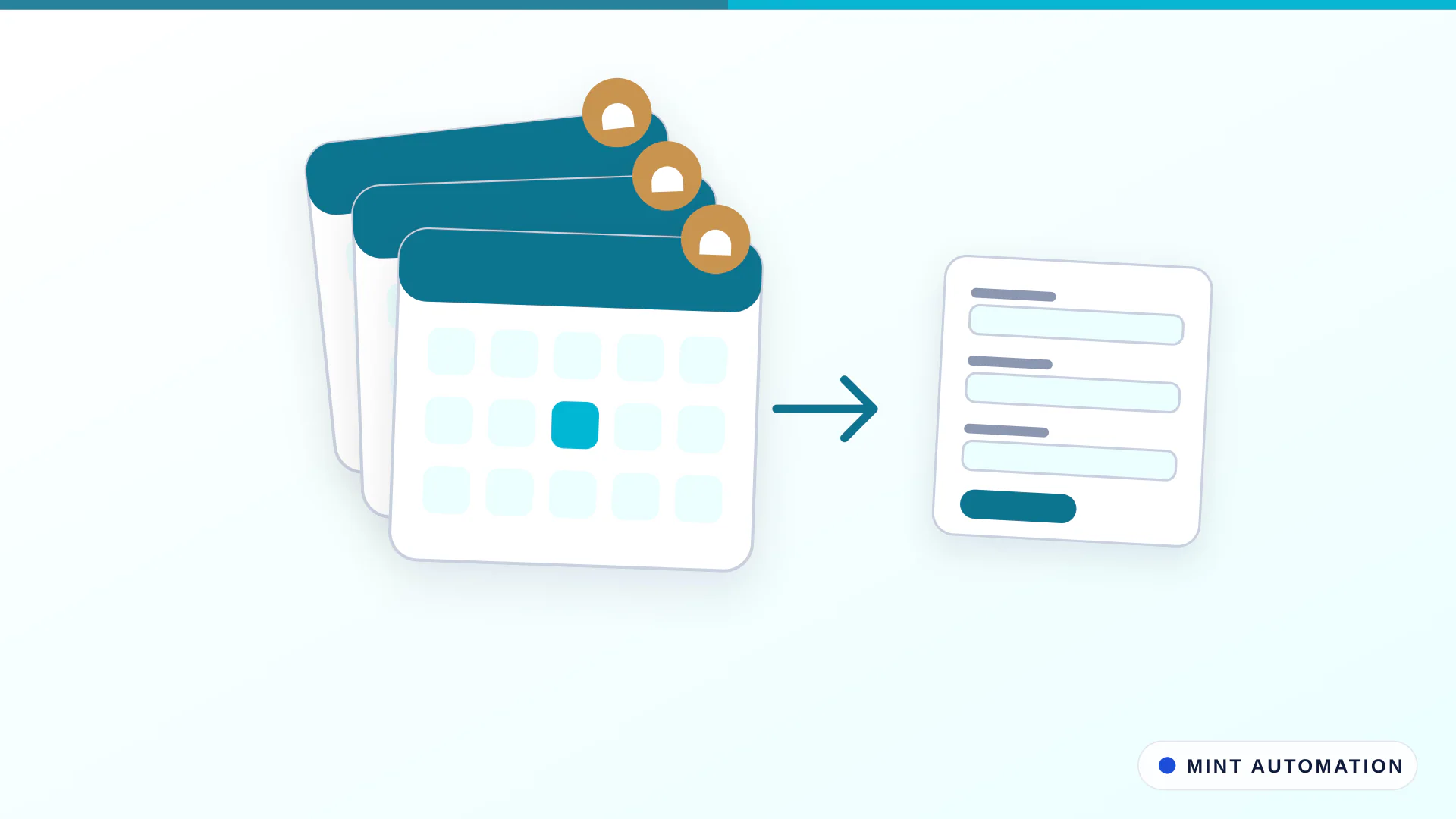
Bulk Document Generation from Spreadsheets: A Plan
A step-by-step plan for bulk document generation from spreadsheets: clean your data, lock templates, and choose mail merge or a custom build.
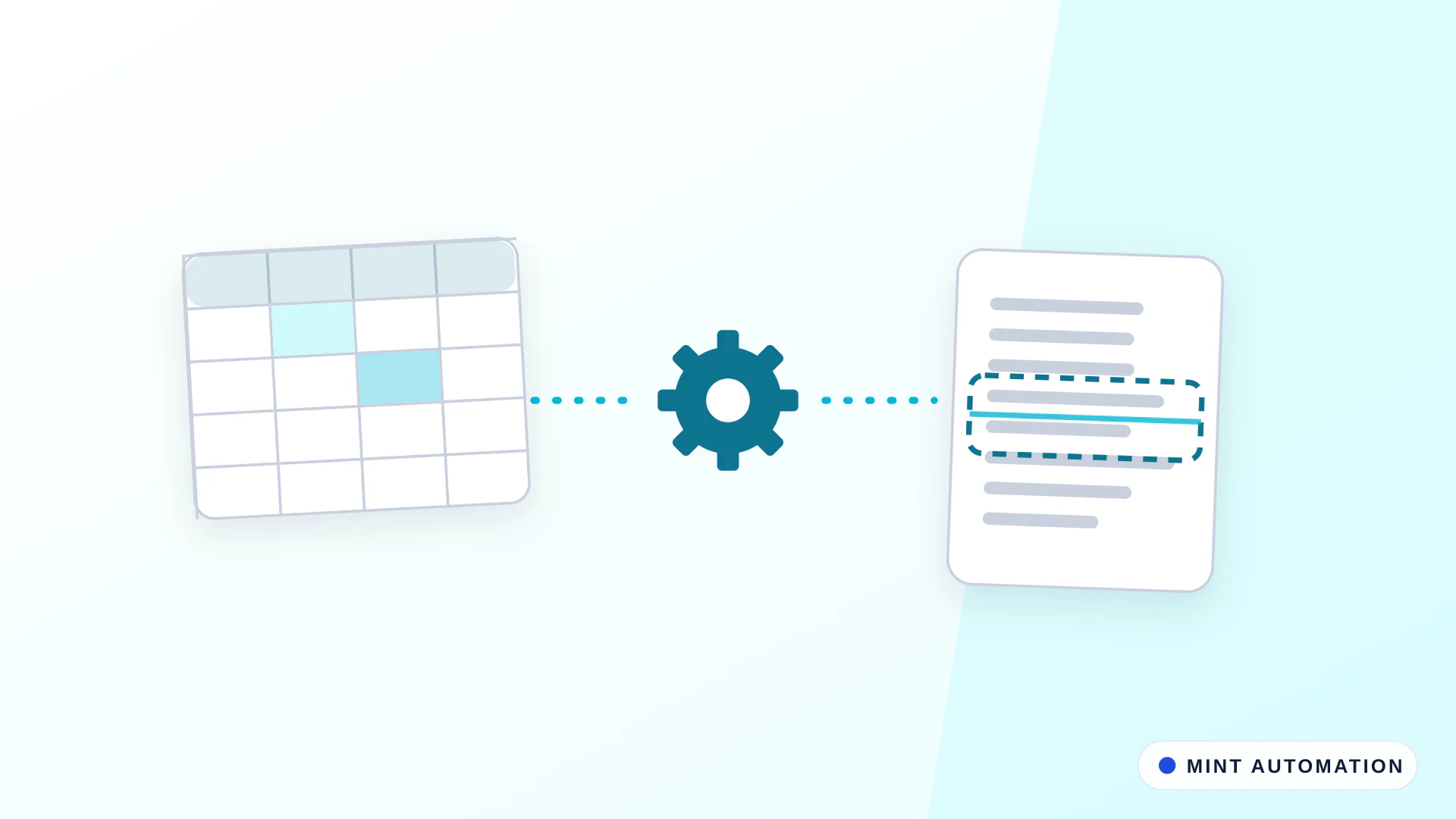
You have a spreadsheet full of rows, and you spend hours copying each one into a template to make a contract, quote, letter or certificate. The short answer: with clean data and an approved template, you can turn every row into a finished document in one pass. This plan walks through preparing your data, choosing which documents to batch, and deciding whether a simple mail merge or a custom build fits your situation.
What Bulk Document Generation Actually Means
Bulk document generation takes each row of a spreadsheet and turns it into a finished document using a fixed template. The row supplies the variable details; the template supplies everything that stays the same. Instead of one document at a time, you produce the whole batch at once.
The common outputs are familiar: quotes, contracts, invoices, welcome letters, certificates, delivery notes and offer letters. Anything where the structure is identical and only the names, dates and amounts change is a good candidate.
The idea is not new. A mail merge combines a template with a data source to produce many personalised documents. What has changed is how far you can take it: beyond simple letters, into conditional content, multiple templates, and automatic delivery.
One-off vs recurring jobs
A one-off job is a single batch you run once and forget, such as 300 certificates after an event. A recurring job runs the same way every week or month, or on demand whenever someone adds rows. Recurring work justifies more setup because you reuse it. If you will only ever run a batch once, a lighter approach is usually fine.
Single template vs several templates
Sometimes every row uses the same template. Other times one spreadsheet feeds several: a standard contract for most customers, a different one for a region or product line. The moment you need the system to pick the right template per row, you have moved past what basic tools do well.
Finally, decide where finished files end up. They might be saved to a shared folder, emailed to the recipient, or pushed into a system like your CRM. That decision shapes everything else, so settle it early.
Signs This Work Is Worth Automating
Not every repetitive task is worth automating. These signs tell you this one probably is:
- You produce the same document type dozens or hundreds of times a month.
- Someone retypes or copy-pastes the same fields over and over.
- Mistakes creep in: the wrong name, the wrong amount, or an old template version.
- Turnaround is slow because one person owns the task and everything queues behind them.
Here is an illustrative example to show the scale. If a quote takes 8 minutes by hand and you make 200 a month, that is roughly 27 hours of work, or most of a working week, spent on copy-paste. Your real numbers may differ, but running the sum for your own volume usually settles the question quickly. For a fuller method, see our guide on how to calculate the ROI of automating a process.
Step 1: Clean and Structure Your Spreadsheet
The tool matters less than the data you feed it. A clean, well-structured spreadsheet is what makes batch generation reliable. Start here before you touch any template.
The basic rule: one row per document, one column per field, with clear headers. Each row should hold everything needed for one finished document, and nothing should be buried in notes or merged cells.
Common data problems
The same issues show up again and again:
- Dates written several ways in one column, so some read as text and some as dates.
- Currency formatted inconsistently, with stray symbols or commas.
- Blank cells in fields the document needs.
- Related details crammed into one cell, such as a full address that should be split into street, city and postcode.
- Duplicate rows that would produce duplicate documents.
Separate fields that belong apart, and decide in advance what should happen when a required field is empty: skip the row, flag it for a person, or stop the batch. Deciding this now prevents half-finished documents later. If your source data is messy across the board, a focused clean-up first pays off, as we cover in document data extraction: manual vs tools vs custom.
A quick pre-flight checklist
Before any batch run, confirm:
- Every column has a clear, unique header.
- Dates and currency use one consistent format per column.
- Required fields have no blank cells, or you have a rule for the blanks.
- Combined fields are split into the parts the template needs.
- Duplicate rows are removed.
- A few sample rows have been checked by eye against reality.
Step 2: Lock Down Your Templates
With clean data ready, turn to the template. The goal is one approved, trusted version of each document, with no stray copies floating around on people’s desktops.
Start by agreeing on a single approved version of each document and removing the old ones. Then mark exactly which parts change per document and which stay fixed. The variable parts map to your spreadsheet columns; the fixed parts never change.
Handle conditional content deliberately. A clause might only appear for certain customers, or a payment section might differ by region. Write down each rule plainly: “if the customer is overseas, include clause 7.” Clear rules now become clear logic later.
Confirm branding, legal wording and layout with the people who actually own them. The person running the batch is rarely the right person to sign off legal text or brand rules. Get that approval before the first real run, not after a client spots a problem.
Keep a record of which template version produced which documents. When wording changes, you want to know which batch used the old version and which used the new one. This matters most for contracts and anything a client might dispute. Our guide to contract approval automation covers how approvals fit into the wider flow.
Step 3: Decide the Output and Where Files Go
A finished document is only useful if it lands in the right place in the right format. Settle these choices before you generate anything at volume.
First, choose the file format your recipients and systems expect. A fixed PDF is right for sending final documents, while an editable file suits anything that still needs internal review. Match the format to the next step in the process.
File naming conventions
Naming feels trivial until you have 500 files in one folder. Agree a rule so files are easy to find later, such as customer name, document type and date in a consistent order. Consistent names make searching, sorting and auditing far easier, and they stop two documents overwriting each other.
Delivery and follow-on steps
Decide what else happens when a document is generated. Options include:
- Saving to a specific shared folder with the right access.
- Emailing the document to the recipient automatically.
- Triggering a signature request.
- Updating a record in your CRM so the team can see it was sent.
Decide who can access stored documents, especially for anything with personal or financial detail. Our privacy policy sets out how we treat data on projects. Finally, plan an audit trail: a simple record of what was sent, to whom, and when. For contracts and invoices, that trail is often the first thing you reach for when a question comes up.
Your Three Realistic Options, Compared
Most businesses land on one of three approaches. The right one depends on your volume, how complex the documents are, and how often the rules change.
| Option | Best for | Struggles with |
|---|---|---|
| Manual | A handful of documents, rare runs | Volume, consistency, speed; errors creep in |
| Mail merge in your office software | Simple letters, labels, single template | Conditional logic, multiple templates, pushing files into other systems |
| Custom build by MINT | Messy data, many templates, approvals, delivery into your tools | Lightest, one-off needs where setup is not worth it |
Manual
Doing it by hand is fine for a few documents now and then. At volume it is slow and error-prone, and it ties the work to whoever knows the process. If you are copying the same fields more than a few dozen times a month, you have outgrown this.
Mail merge tools
The mail merge built into your office software is genuinely useful for simple, single-template jobs like letters and labels. It gets awkward once you need conditional content, several templates chosen per row, or the finished files pushed into another system automatically. Many teams start here and hit a ceiling; our piece on when to move beyond basic tools describes that moment.
Custom build
A custom automation suits messy real-world data, many templates, approval steps, and delivery into the tools you already use. It costs more to set up than a mail merge, so it earns its place when volume is high, documents are complex, or the rules change often. The comparison is the same shape we draw for Excel reporting: manual vs tools vs custom.
To match an option to your situation: low volume and simple documents point to mail merge; high volume, conditional content or system delivery point to a custom build.
How to Test Before You Trust It
Never point a new process at your full list and walk away. Prove it on a small scale first.
- Run a small batch, perhaps 10 to 20 rows, and check every field in every document against the source data.
- Deliberately test edge cases: very long names, missing fields, unusual amounts, and special characters that often break layouts.
- Have the document owner sign off on the output, not just the person running the batch. The approver for legal or brand wording should see real generated documents.
- Plan what happens when a row fails, so nothing is silently skipped. A failed row should be flagged and held, never dropped without notice.
- Keep a human check in place for high-stakes documents like contracts, even once the process is trusted.
The row-failure point deserves emphasis. The worst outcome is not an error you can see; it is a document that was never produced and no one noticed until the customer asked. Build the process so failures are loud.
Sources and further reading
How Mannveer International (MINT) Can Help
If your problem is rows of data and hours of copy-paste, this is squarely what we do. We start by mapping your current process, cleaning up the data structure, and locking down approved templates, then build generation that handles conditional content, multiple templates and the messy data real businesses actually have. We connect the output to delivery, whether that means saving to folders, emailing recipients, or updating your CRM, and we add error handling and an audit trail so you can always see what was produced and sent.
We scope the work first and give you a fixed quote, with standard automations typically delivered in about 3 to 7 business days, followed by ongoing support. The best starting point is a short review of your documents and volumes to see whether a simple tool or a custom build fits. You can also browse our ready-made automation products and the client onboarding workflow pack if your documents are part of an onboarding flow.
- Contact MINT to describe your documents and volumes.
- Connect with MINT to talk through your current process.
- See MINT case studies for examples of similar work.
- Book a free automation assessment to get a clear recommendation.
FAQ
How many documents do I need before automating is worth it?
There is no fixed number. Look at volume times time per document. As an illustrative example, 200 quotes a month at 8 minutes each is around 27 hours. If repetitive document work costs you most of a working week, automating usually pays back quickly.
Can I generate different document types from the same spreadsheet?
Yes. One spreadsheet can feed several templates, with the system choosing the right one per row based on a rule, such as customer type or region. Basic mail merge struggles with this, but a custom build handles multiple templates and conditional content reliably.
Will automated documents still match our branding and legal wording?
Yes, as long as you lock down one approved template first and have the brand and legal owners sign off on real generated samples. The fixed parts of the template never change between documents, so branding and wording stay consistent across the whole batch.
What happens when a spreadsheet row has missing or bad data?
You decide the rule in advance: skip the row, flag it for a person, or stop the batch. A good process never silently drops a row. Failures should be flagged and held so someone can fix the data and rerun that document.
Is built-in mail merge enough, or do I need a custom build?
Mail merge is enough for simple, single-template jobs like letters and labels. You need a custom build when you have conditional content, multiple templates chosen per row, messy data, approval steps, or you want files delivered automatically into folders, email or your CRM.
Have a repetitive task?
Tell us what your team does by hand. We will tell you honestly whether it is worth automating.