Automating QuickBooks: A Finance Team's Rollout Plan
QuickBooks automation without the chaos: a staged plan to map tasks, clean your data, set controls, roll out safely and measure the payback.
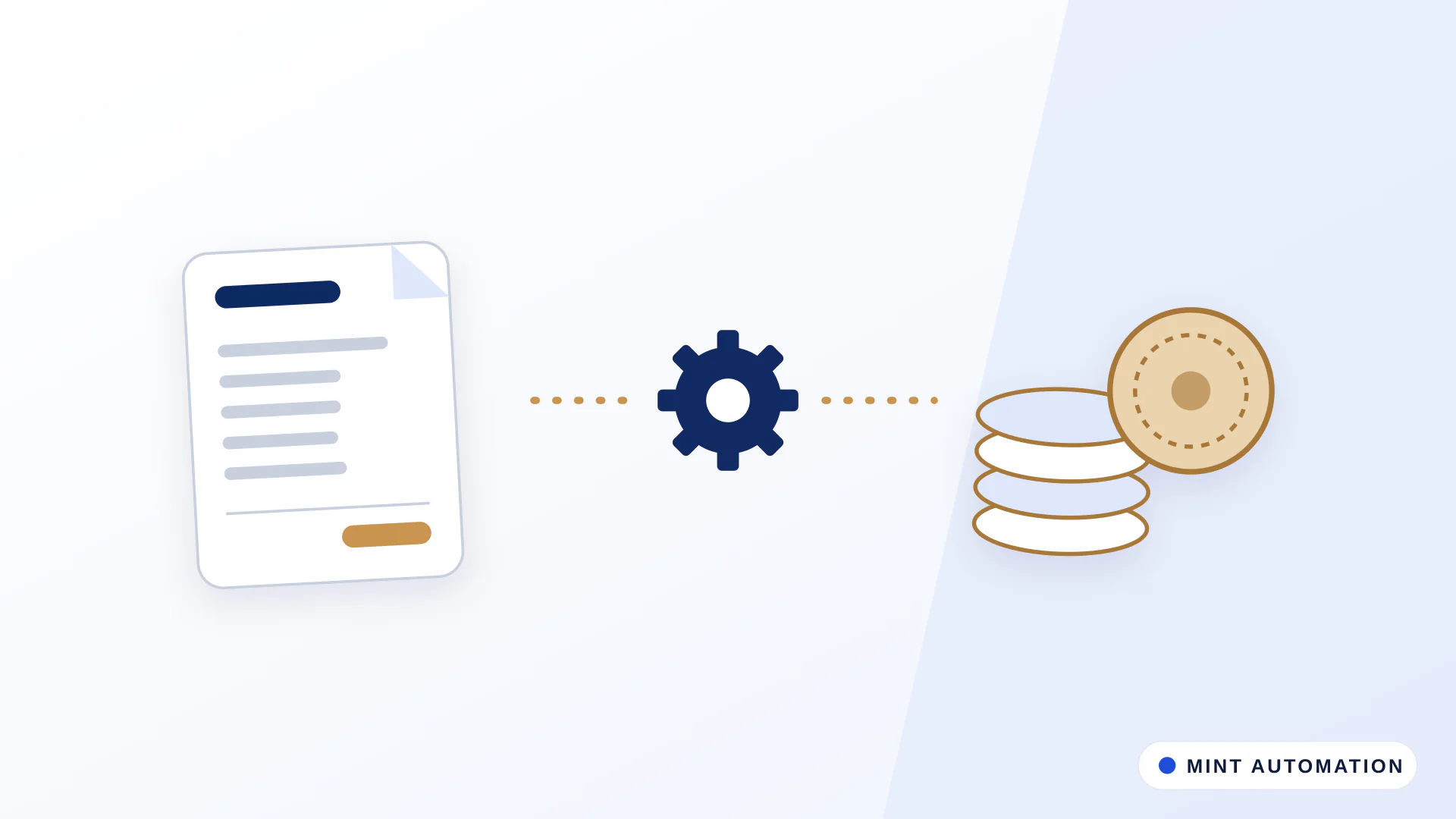
Your finance team loses hours each week retyping invoices, matching payments and copying numbers in and out of QuickBooks. The short answer: automate the repetitive, rule-based tasks first, but only after you clean up your process and decide how data should flow. This plan shows you what to automate, how to prepare your team and data, and how to roll it out in stages you can measure and trust.
What People Mean by QuickBooks Automation
When people say QuickBooks automation, they usually mean removing the repetitive manual steps around QuickBooks, not replacing your accountant. Your bookkeeper still reviews the books, handles judgment calls and signs off on the month. Automation takes the boring, repeatable parts off their plate so they spend time on work that needs a human.
Common targets include creating invoices, matching incoming payments to open invoices, chasing overdue accounts, and syncing sales and expenses from other apps you already use. QuickBooks is accounting software made by Intuit for small and mid-sized businesses (QuickBooks official site). Most of the pain sits at the edges, where data moves between QuickBooks and your sales, payment or store systems.
Built-in features vs add-ons vs custom
There are three broad ways to reduce manual work, and they are not mutually exclusive:
- Built-in features: recurring invoices, bank feeds and reminder emails that QuickBooks already offers. Free with your plan, but limited to what the product decides.
- Add-on apps: ready-made connectors that link QuickBooks to popular tools. Fast to switch on, but they follow the app maker’s rules, not yours. When an add-on almost fits but forces awkward workarounds, that is a sign you have outgrown it. We cover that moment in when to move beyond off-the-shelf tools.
- Custom automation: built around your exact process, including your odd exceptions and approval steps. This is the right choice when your workflow is specific, high volume, or spread across several apps. Most of this happens through API and app integrations that connect your systems directly.
Online vs Desktop considerations
Both QuickBooks Online and QuickBooks Desktop can be automated, but the approach differs (Wikipedia: QuickBooks). Online products are generally easier to connect to other web apps because the data lives in the cloud. Desktop products often need a different connection method and sometimes a small bridge on the machine where QuickBooks runs. If you are on Desktop, say so early, because it changes how the work is scoped. We go deeper on this in automating legacy desktop software and what it costs.
List the Tasks That Actually Hurt
Before buying or building anything, make a plain list of every recurring QuickBooks task and who does it. You cannot automate what you have not written down, and the act of listing usually reveals duplicated effort you did not know about.
For each task, note two things: how often it happens (daily, weekly, month-end) and roughly how long it takes each time. You do not need a stopwatch. A reasonable guess is enough to spot the tasks eating the most hours. For example, if someone spends ten minutes per invoice and creates forty invoices a week, that is nearly seven hours gone on one task alone.
Good candidates for automation
The best candidates share three traits: they are repetitive, rule-based and high volume. If a task follows the same steps every time and the decisions can be written as clear rules, it is a strong fit. Watch for these:
- Creating the same type of invoice from an order or a spreadsheet
- Matching payments from a processor to open invoices
- Entering expenses from receipts or supplier statements
- Sending reminders for overdue accounts on a schedule
- Copying sales from your store or point-of-sale into your books
Tasks to leave with a person
Keep anything that needs real judgment with a human. That includes approving unusual payments, handling a customer dispute, deciding how to treat a one-off transaction, or anything where the right answer depends on context the software cannot see. Automation should hand these cases to a person, not guess. For a wider view of where the line sits, see what can be automated and what should not be.
Clean Up Before You Automate
Automation copies your current process faithfully, including its mistakes. If your records are messy today, automation will spread that mess faster and more consistently. Fix the process first, then automate the clean version.
Start by standardizing the building blocks that other systems rely on: your chart of accounts, your customer names and your item or product lists. When a customer is called “Acme Ltd” in QuickBooks and “ACME Limited” in your CRM, an automated sync has no reliable way to know they are the same account. Consistent naming is what lets records match across systems without a human refereeing every row.
Next, decide the single source of truth for each piece of data. If a customer address lives in both your store and QuickBooks, pick which one wins when they disagree. Without this decision, a two-way sync can overwrite good data with stale data.
Finally, resolve duplicate customers and inconsistent naming before any sync is switched on. This is tedious but cheaper to do once, by hand or with a focused clean-up, than to untangle later. A tool like our Data Cleaner and Deduplicator can speed up the merge work on large lists.
Map How Data Should Flow
Once your data is clean, draw a simple map of how information should move. For each piece of data, decide which system owns it and which direction it should travel. A one-page diagram prevents most of the confusion that derails these projects.
A typical flow looks like this: a payment recorded in your payment processor updates the matching invoice in QuickBooks and marks it paid. Sales from your store create invoices or sales receipts. Expenses from a card feed land in the right account. Name the real apps involved, for example Shopify, Stripe, or your CRM, so nothing is quietly left out of scope.
One-way vs two-way sync
Most flows should be one-way: one system is the source, the other receives. One-way sync is simpler, safer and easier to reason about when something looks wrong. Use two-way sync only when both systems genuinely need to update the same record, because it doubles the number of ways things can conflict. The table below compares them.
| Factor | One-way sync | Two-way sync |
|---|---|---|
| Complexity | Lower | Higher |
| Risk of conflicts | Low | Needs clear rules |
| Good for | Sales or payments feeding into books | Records both systems edit |
| Troubleshooting | Easier to trace | Harder to trace |
We walk through a specific case of this in syncing Stripe to your accounting software.
Planning for exceptions
The real work is deciding what happens when data does not fit. What should happen to a payment that matches no invoice? A refund? A partial payment? An amount that is a few cents off? Agree on each exception up front and decide whether the automation parks it for a human or handles it by a clear rule. Exceptions you ignore now become the support tickets you get later. Getting store sales into your books cleanly is a common source of these edge cases, covered in POS to ERP integration.
Set Rules, Approvals and Controls
Write plain-language rules for how each task should behave, including the edge cases you listed above. “When a payment arrives, find the open invoice with the same reference and amount, mark it paid, and if no match is found, flag it for review” is the level of detail you want. If you cannot describe the rule in a sentence, it is not ready to automate.
Keep a human approval step for anything involving money leaving the business. Automation can prepare a payment or a bill, but a person should approve it before it goes out. This single control prevents most of the scary scenarios people worry about. For a deeper checklist on this, see accounts payable automation.
Decide who gets alerted when something fails or looks unusual, and how. A failed sync that nobody notices for a week is worse than no automation at all, because you stop checking manually. Finally, protect access: limit who can change automation settings, use separate logins rather than a shared password, and keep an audit trail so you can see what changed and when.
Roll Out in Stages and Measure
Resist the urge to automate everything at once. A staged rollout lets you build trust and catch problems while they are small. Here is a practical order:
- Pick one low-risk task from your list, such as matching clearly identified payments.
- Run the automation alongside the manual version for a short period, for example two to four weeks.
- Compare the automated output against the manual results, row by row, until they agree reliably.
- Switch the task fully to automation and stop the manual version.
- Move to the next task only once the first has been stable for a few weeks.
Run in parallel first
Running in parallel feels like extra work, and it is, for a short while. But it is the cheapest insurance you can buy. If the automation and the manual process disagree, you find out before any bad data reaches your books, not after month-end close.
What to measure
Agree on a few numbers before you start so you can judge payback honestly. Track at least these:
- Time saved per week on the task
- Error rate, measured as corrections needed per hundred records
- How fast invoices get paid, from issue date to payment
For example, if a task took six hours a week and now takes one, that is five hours returned to your team every week. Whether that pays for the work depends on your numbers, and we explain how to run that calculation in how to calculate the ROI of automating a process and how to judge data entry automation payback.
Plan for When Something Breaks
Every running automation will eventually hit something it did not expect. A software update, a changed password, a new tax rule or a renamed account can all stop a working automation. This is normal. The question is whether you have planned for it.
Decide who owns each automation and who fixes it when it stops. If the answer is “nobody,” the automation is a risk, not an asset. Name a person internally and a contact who can repair it quickly. Alongside that, keep a simple fallback: a written manual version of the task so the team can do it by hand for a day without panic. Automation should make you faster, not leave you stranded when it pauses.
Finally, review your automations every few months. Confirm they still match how you actually work, because your process drifts over time even when the software does not. A ten-minute review each quarter catches small mismatches before they become wrong numbers. For a broader checklist on evaluating automation for operations, see AI agents for business operations.
Sources and further reading
How Mannveer International (MINT) Can Help
If your finance team is drowning in retyping and reconciling, we start by mapping your current QuickBooks tasks and telling you honestly which are worth automating and which to leave with a person. You get a fixed quote before any work begins, so there are no surprises. Standard automations typically go live within three to seven business days of a signed scope, and we build around your exact process rather than forcing you into a rigid template.
We handle the connections between QuickBooks and your other apps, including the approval steps for money leaving the business and alerts when something looks wrong. We roll out in stages, run the automation alongside your manual process first, and support it when software updates or rule changes break something. Invoicing is often the best place to start, and our Invoice Automation Kit is a common first step before a fuller build.
- Contact MINT to describe your QuickBooks workflow and get a fixed quote
- Connect with us to talk through Online vs Desktop and your other apps
- Read our case studies to see how we approach staged rollouts
- Book a free automation assessment to find which tasks pay back fastest
FAQ
Is it safe to automate accounting tasks in QuickBooks?
Yes, when you keep a human approval step for any money leaving the business, limit who can change settings, and keep an audit trail. The safest approach runs the automation alongside your manual process first, so you catch problems before bad data reaches your books.
Can QuickBooks Desktop be automated, or only QuickBooks Online?
Both can be automated. QuickBooks Online is usually easier to connect to other web apps because its data lives in the cloud. Desktop often needs a different connection method or a small bridge on the machine running it, which changes how the project is scoped and priced.
How much does it cost to automate QuickBooks tasks for a small business?
It depends on how many tasks you automate, which apps are involved, and whether you run Online or Desktop. We give a fixed quote after scoping your workflow. Judge cost against hours saved each week and faster invoice payment rather than price alone.
Which QuickBooks tasks should I automate first?
Start with one low-risk, repetitive, rule-based task such as matching clearly identified payments or creating standard invoices. Run it alongside the manual version for a few weeks, confirm it is accurate, then expand to the next task only once the first is stable.
Will automation replace my bookkeeper or accountant?
No. Automation removes repetitive data entry and matching so your bookkeeper spends time on judgment, review and advice. Approvals, unusual transactions and month-end sign-off stay with a person. The goal is fewer manual hours, not fewer qualified eyes on your books.
Want your apps to stay in sync on their own?
MINT connects your CRM, accounting, and spreadsheets so data moves without copy-paste.